
Data Management
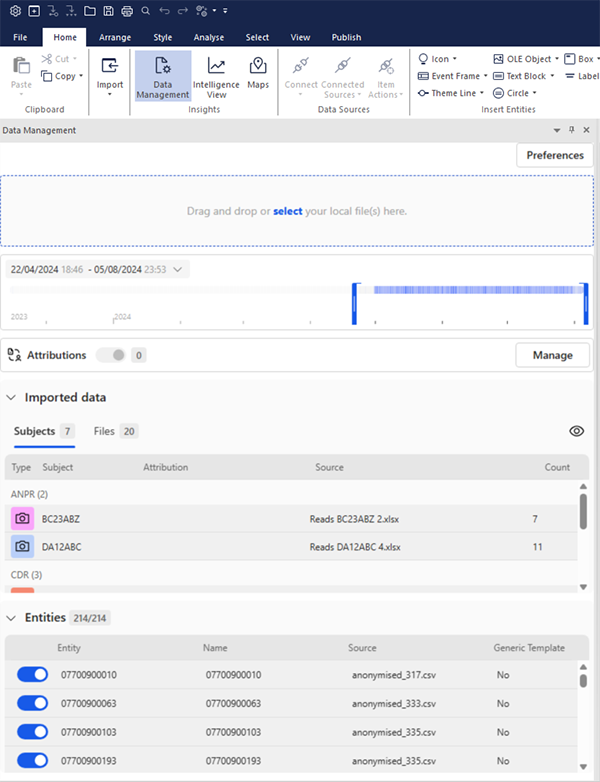
The Data Management interface helps you to manage your incoming data, and how you want it to be displayed.
When you open i2 Insights, you need to provide the data you want to analyze. The other sections, map, and chart update as soon as you import any data.
Preferences
You can configure the settings that you want to apply to Insights, such as whether to show pop-ups.
File selection
You can drag and drop local files from your file manager into the Data Management view, or click Select to open file manager. Insights automatically standardizes and normalizes the source data as it is ingested. For details of supported file types, see the latest release notes.
If Insights does not recognize your data, you will see a message advising that there is no recipe available. You can use the Generic Template to arrange data into an ingestible format, instructions are available in your installation folder. If you have used this template, you should also contact i2 Support so that the Insights team can develop an appropriate recipe for your data, which will make it easier to import in the future.
Analysis period
The analysis period is initially determined by the dates and times taken from your imported data. You can see density of activity from the bands of color on the timeline. You can drag the bars to shorten the timeline and focus on areas of interest. The drop-down date and time box gives you precise control over the analysis period, and the changes you make are updated in the Intelligence View.
Attributions
Attributes are useful for adding meaning to your analysis. For example, when you add a Name attribute to a phone number, you can see the name of the owner of the phone in all views and analytics, instead of the number. This makes it easier to follow activity across the Intelligence View. See the Using attributes in Insights section for more information.
Imported data
The imported data section shows you the data you have imported, including the number of subjects and files. You can alternate between the Subjects and Files views by clicking the respective tabs. See the Imported data section for more information.
Entities
The Entities section displays the entities imported from your data and lets you include or exclude them from your analysis. See the Entities section for more information.