Using attributes in Insights
You can use attributes to add context and meaning to your data analysis in Insights. Attributes allow you to label and categorize your data points, making it easier to understand and analyze the information. In Insights, attributes are applied to Subjects.
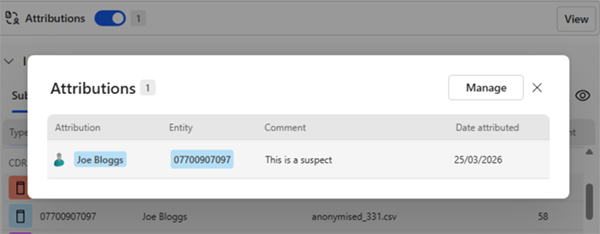
For example, when you import Call Data Records (CDR), it might be useful to attribute a Name to a Subject. The Subject in this case is the number of the communications device under investigation. By giving that number a name, such as the owner of the telephone, it is easier to follow activity across the Intelligence View. For example, you know that Joe Bloggs' phone number is 07700907097. When you change that number to his name, Joe Bloggs is displayed in all views and analytics, instead of the number.
Procedure
The first time you use Attributions, the options button defaults to Manage. Click Manage to open the Attributions dialog. This is where you can view, import, and create attributes.

If you have a file with your attributes already defined, you can import it directly into Insights. Drag and drop local files from your file manager, or click Select to open file manager. You can see an example here.
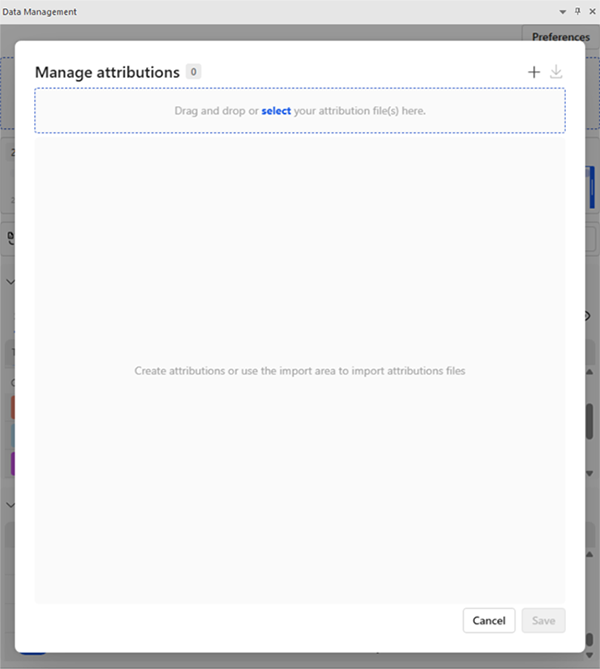
Alternatively, you can create attributes manually. Click the '+' symbol to open blank attribution fields.
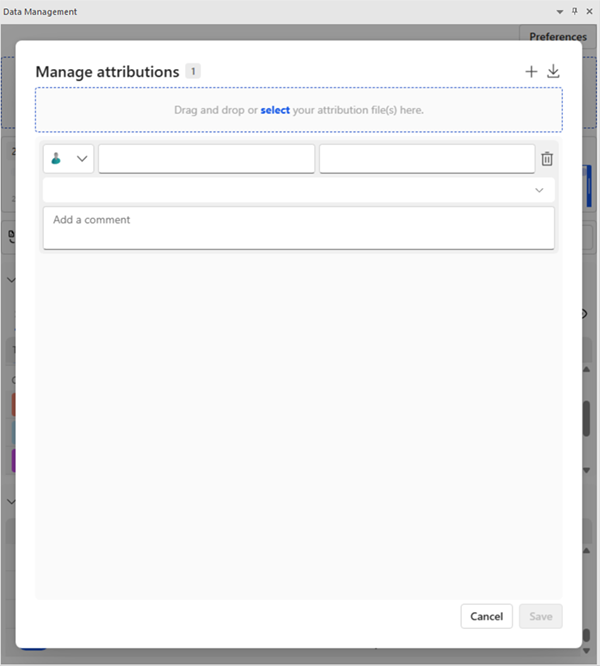
From the drop-down menu, select an icon for your attribute and add values for the other fields, such as First Name, Last Name and comments. In this example, we select Person, add the name Joe Bloggs and a comment such as "This is a suspect".
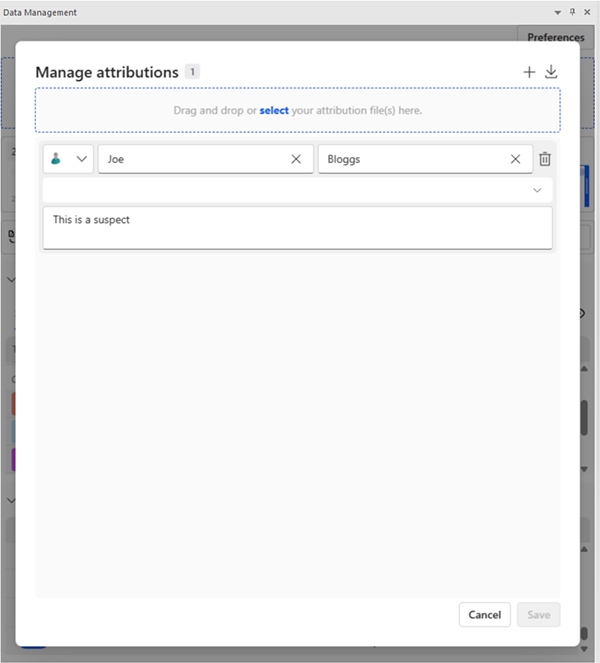
In the remaining field, click the drop-down to list the Subjects in your data. The attribution list contains Subjects, which are the items that you can attribute in Insights. Select the Subject that you want to attribute, such as a phone number. In this example, we select 07700907097.
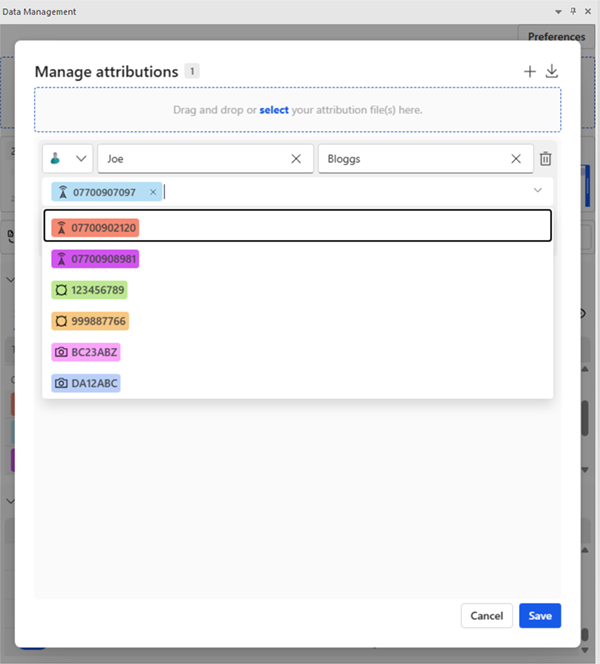
Click Save to save the attribution. The name Joe Bloggs now replaces the telephone number in all views and analytics.
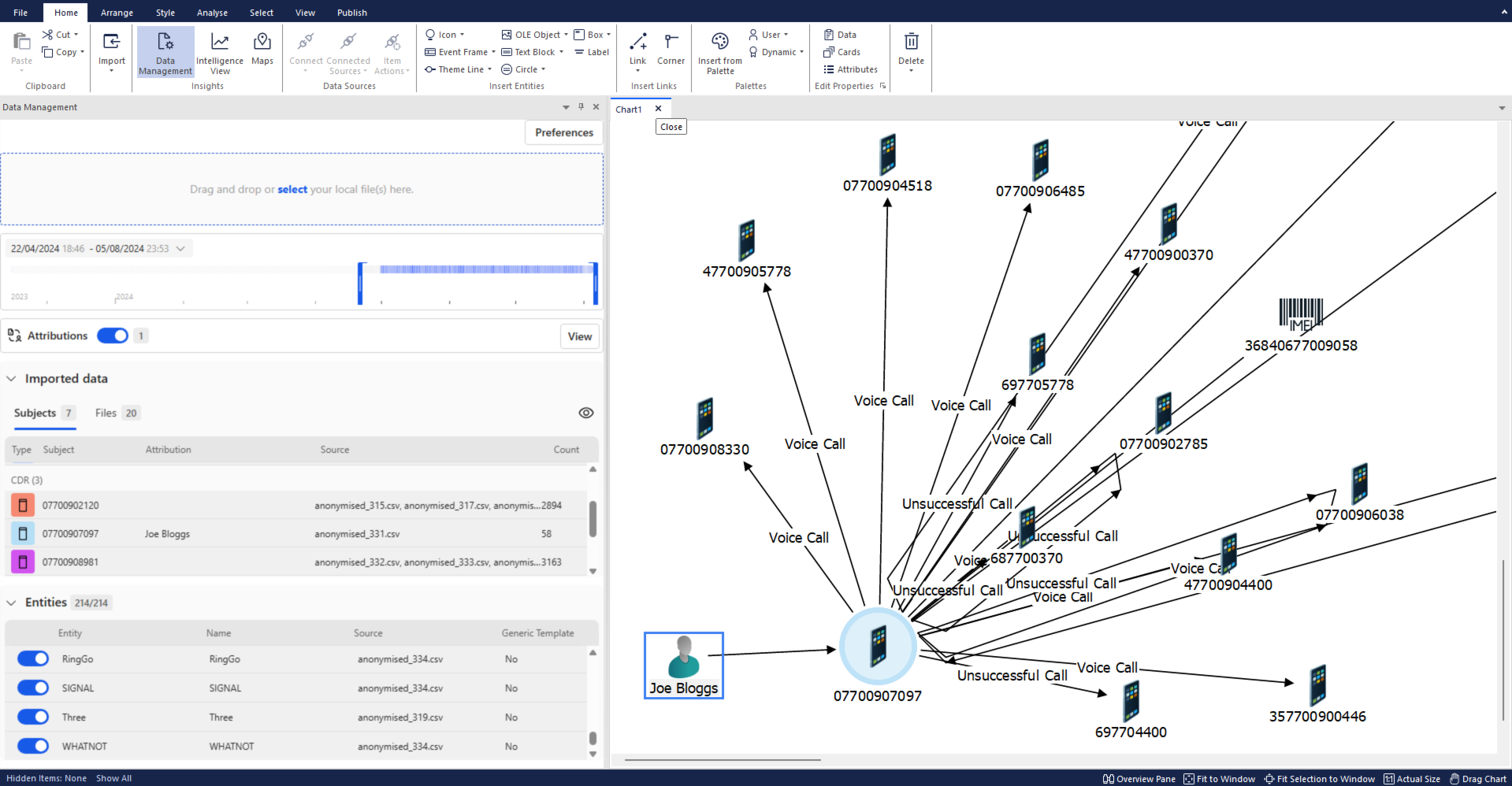
When you have created attributions, the options button defaults to View. Click View to see a list of all your attributions. You can edit or delete attributions from this view. You can also toggle between displaying Attributions and the plain Entity values in the Intelligence View. This is useful if you want to check the original data values, or if you want to temporarily hide the attributions.