Using i2 Insights
Welcome to the i2 Insights user documentation, where you can find information about how to use i2 Insights in your investigations.
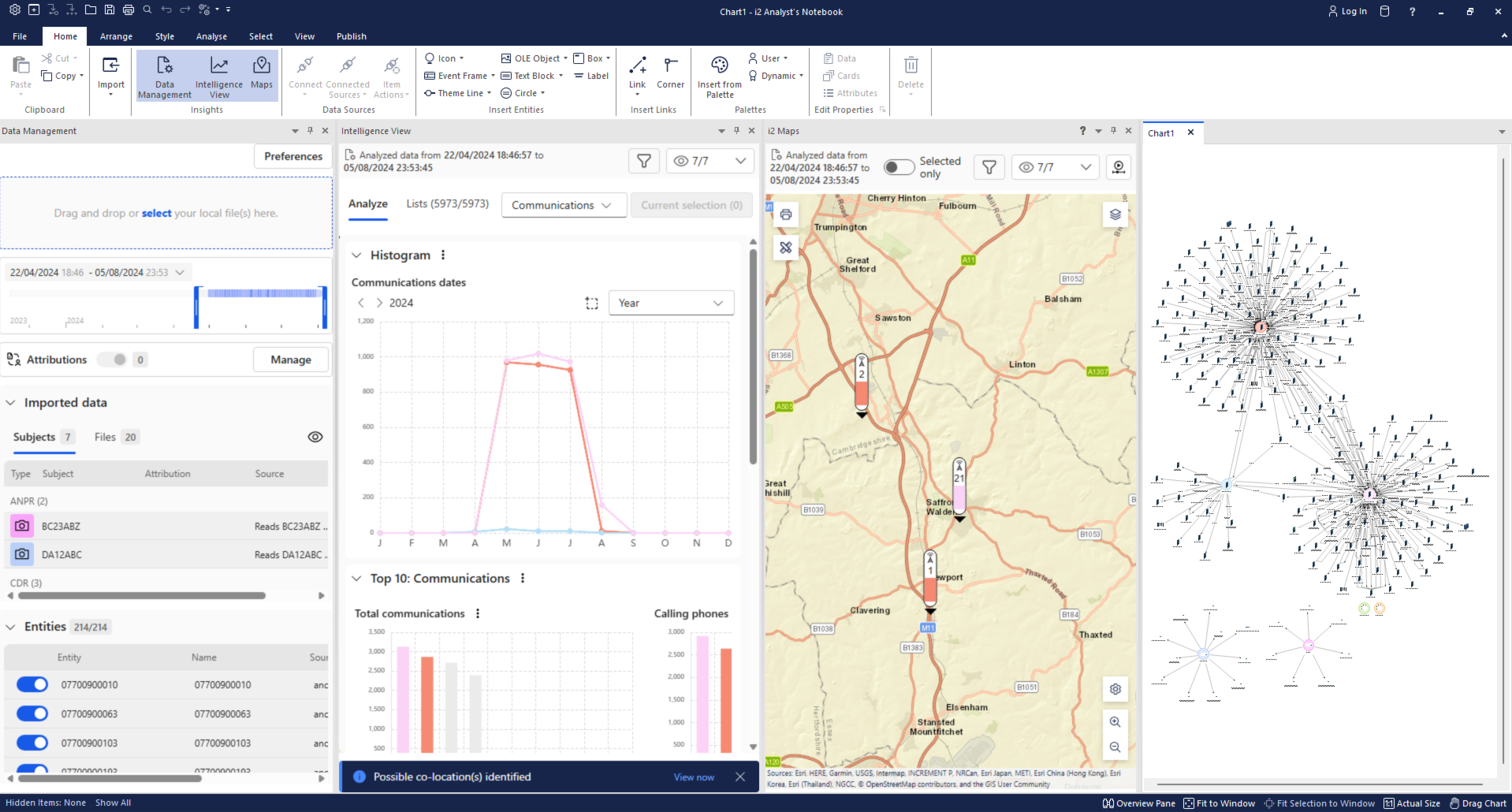
Source data comes in a variety of formats from numerous providers. Importing data can slow investigations down because complex import specifications are needed to make sense of the data. i2 Insights adds significant functionality around the normalization and visualization of data sets, automatically ingesting source data. This helps you to immediately see patterns in the data, and highlight key areas of interest, which is particularly useful in time-sensitive investigations.
Before you can use i2 Insights, your Analyst's Notebook installation must include support for i2 Analyze. This is already included in a Typical installation, however in a Custom installation it is possible that i2 Analyze was not selected. If you need to make changes, go to the Control Panel on your computer and click Programs and Features. Highlight i2 Analyst's Notebook in the programs list, and click Change > Next to open the Program Maintenance options. Select Modify and click Next. Then from the Custom Setup screen, select i2 Analyze Support. Click Next to modify the installation.
Note: You do not have to connect to i2 Analyze in order to use Insights.
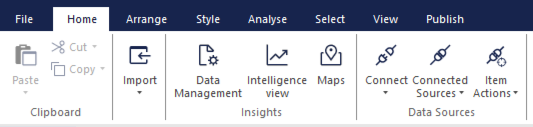
When you open Analyst's Notebook after installing Insights, the Home tab on the ribbon gains a new Insights section.
i2 Insights is divided into views that update dynamically. When you start using Insights, the views are unpopulated because they are driven by your imported data. When you import data and begin working with it, the changes that you make are updated across Data Management, the Intelligence View, the Maps view, and also on the surface of the Analyst's Notebook chart.