
Intelligence View
The Intelligence View is a powerful tool for exploring your data and finding insights that might not be immediately apparent from looking at the raw data.
Filters
The filter options allow you to narrow down your data so you can choose to focus on a specific event type, such as text messages. Anything you hide or remove can be reinstated, and is not removed from the Data Management section.
Analyze
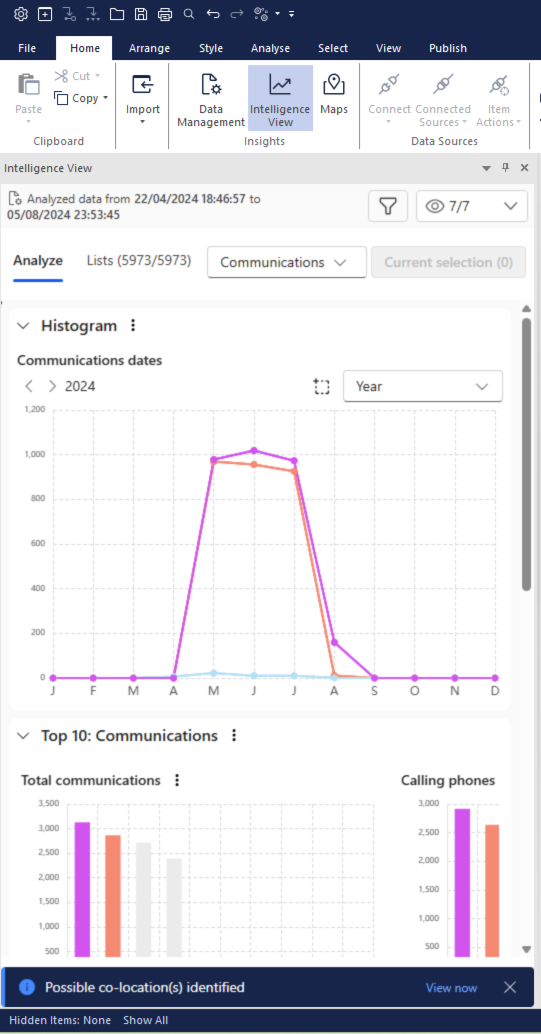
Select the Analyze tab to view analytics for your data. Once on the Analyze tab, use the type drop-down to select the data type you want to analyze. The available types depend on the data you have imported, and the view updates to show charts, histograms, and ranked aggregations tailored to that type. These visualizations help you identify patterns and areas of interest, such as peaks in activity over time or the most frequently occurring entities in your data. You can also download or copy the underlying analytics data, and download or copy the analytics as an image.
Lists
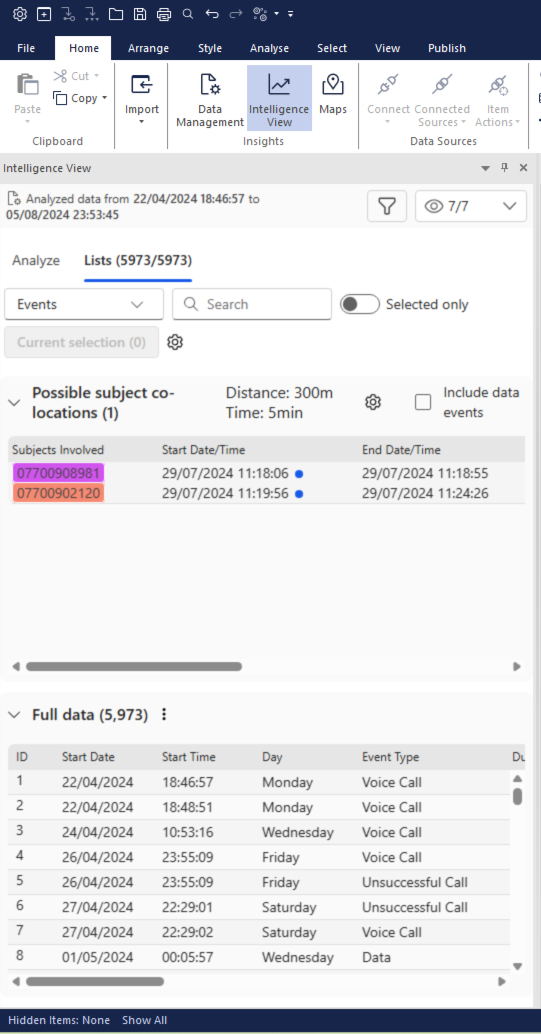
Select the List tab to see a tabular view of your data. Once on the Lists tab, use the type drop-down to select the data type you want to explore. The available types depend on the data you have imported, and the list updates to show the records applicable to that type. You can sort and filter the list, and it is useful for exploring the details of your data and looking for possible subject co-locations. Insights automatically identifies events occurring within specified spatial and temporal thresholds, which you can configure in the settings for that section. You can search the list view and customize the columns.
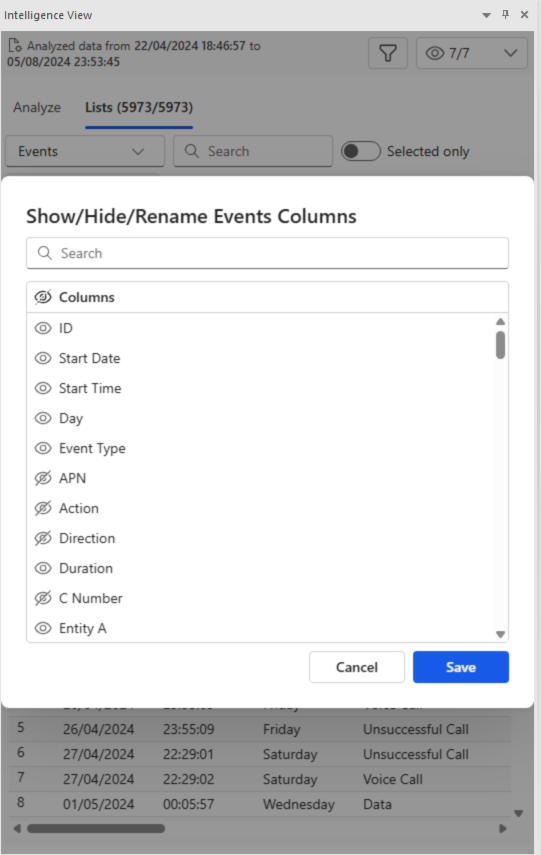
Click the gear icon to open the Columns dialog, where you can search, show or hide columns. To rename a column, double-click the column name in the list view. You can reorder and resize columns, and your preferences are saved for each view. You can also save default views with reduced columns, and restore full visibility when needed. You can export list data, for example as a CSV or XLSX file.
Selection
When you make a selection in either the Analyze or Lists view, Insights finds details of that selection wherever it appears and provides a pop-up summary. The chart and map views update to display your selection.
Note: Insights includes two built-in types. Events aggregates activity across all imported data regardless of source and is available in both Analyze and Lists. Generic supports data imported using the Generic Template and provides generic analytics and list views.