Imported data
The Imported data view displays all the subjects and files imported from the data source.
You can drag and drop local files from your file manager into the Data Management view, or click Select to open file manager.
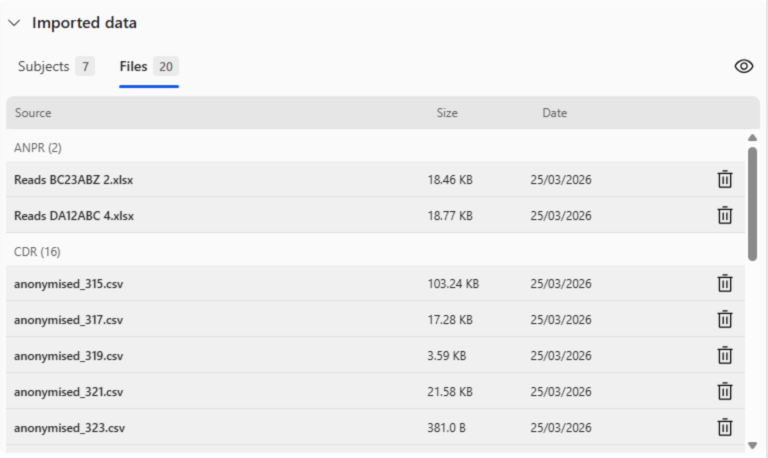
When your files are ingested into Insights, the imported data section displays the number of Subjects and the Files imported. The source of the data, ANPR for example, is also displayed. You can alternate between the Subjects and Files view by clicking on the respective tabs.
Both the Subjects and Files tables support sorting, which can help you organize the imported information.
Subjects
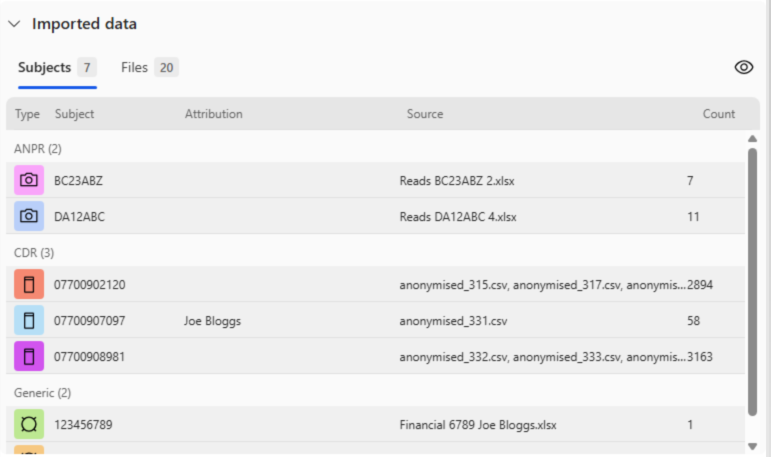
A subject is an entity that was identified as the subject of interest when a file was imported, representing the primary number or identifier under investigation. For example, when you import a Call Data Records (CDR) file, the subject is the phone number whose records are being analyzed. Subjects appear in the Subjects section of the Imported data view and are tracked against the files for which they were the focus.
The Count column shows the number of events for each subject.
You can change the color of a subject in the Subjects view, and this is reflected throughout the Insight panes and the Analyst's Notebook chart surface.
Files
Files are the actual data files that have been imported into Insights. When you import a file, Insights will automatically parse the data and extract the relevant subjects and entities. You can view the list of imported files in the Files view, where you can also delete or re-import files as needed.
Note: Multiple uploads can result in duplicate entries.