
Administration Console: Deployment
The Deployment tab provides the tools to deploy, upgrade, or clean your i2 Explore for iBase environment, and to monitor the progress of these operations in real time.
For step-by-step deployment and upgrade procedures, see Deploying and upgrading using the i2 Explore Administration Console.
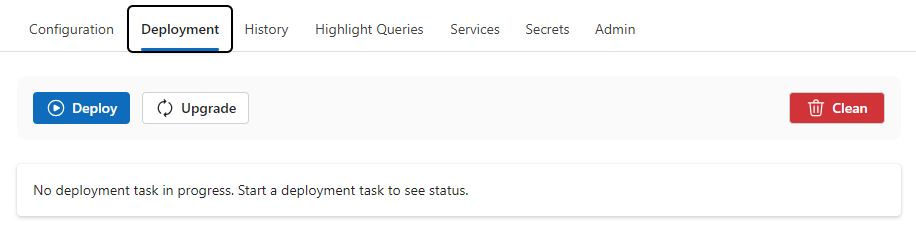
Actions
The Deployment tab provides three actions, each represented by a button at the top of the page:
Deploy — Deploys the i2 Explore for iBase application using the current configuration. If this is the first deployment, the Administration Console prompts for database administrator credentials with sysadmin permissions to create the Information Store database, logins, and users. Subsequent deployments do not require these credentials, because they use a dedicated database user that was created during the first deployment. For more information, see Database permissions summary.
Upgrade — Use this action once after you unpack a new release over the top of an existing installation. The upgrade stops all running services, removes the current deployment, re-downloads third-party prerequisites, updates the i2 Explore services to the latest versions, and redeploys the application. Database administrator credentials are always required.
Clean — Stops all running services, removes installed binaries, and drops the Information Store database and associated logins. iBase data is not modified by this operation. Flagged records are backed up and restored on the next deployment. Database administrator credentials are always required.
Before each action begins, a confirmation dialog is displayed. The dialog includes a log level selection (Info or Debug) and, where required, fields for database administrator credentials. The credentials are not stored and are used only for that operation.
Note: The Deploy and Upgrade buttons are disabled if the configuration contains validation errors. The Clean button is always available, even if the configuration is invalid. All three buttons are disabled while another task is running.
Clean and force clean
The Clean confirmation dialog includes a Force clean checkbox. During a standard clean, the operation stops if it cannot connect to the database, back up flagged records, or drop the Information Store database. This preserves the database scripts and flagged record data so that you can resolve the issue and retry.
When Force clean is selected, the clean operation continues with file cleanup even if the database steps fail. This means that the database scripts and any flagged record backups are deleted regardless of whether the database was successfully dropped. If the database drop failed, you might not be able to drop the database and users afterwards because the required scripts are no longer available. If the flagged records backup failed, those record flags are permanently lost.
Important: Use force clean only if you understand the consequences, or if you are advised to do so by i2 Group support.
Monitoring progress
When a task is running, the Deployment task panel displays the current operation, its status, and a timestamped list of steps. Each step shows a status indicator: a spinner for running steps, a green tick for completed steps, a red icon for errors, and a yellow icon for cancelled steps.
Two collapsible log panels are available below the task panel:
Deployment Log — Displays the full deployment log in real time. This panel is expanded by default and updates automatically while a task is running.
Liberty Log — Displays the Liberty application server log. This panel is collapsed by default and updates automatically when expanded during a running task.
If a task fails, an error summary is displayed in a highlighted panel above the log, describing the cause of the failure. If a task is cancelled, a cancellation summary is displayed instead.
Cancelling a running task
A Cancel button is displayed in the header of the Deployment Task panel. The button is enabled only while a task is running. Clicking Cancel requests cancellation of the current operation. The task status changes to "Cancelling" and the Administration Console displays a warning message while cancellation is in progress.
Cancellation is not instantaneous. The running operation completes its current step before stopping, which means that some resources might already have been modified. After cancellation completes, the task status changes to "Cancelled" and a summary is displayed. You can review the outcome in the History tab and in the deployment log.
Important: Cancelling a clean or upgrade operation part-way through can leave the environment in an indeterminate state and may lead to issues on the next deployment attempt. If this occurs, run a clean operation followed by deploy to restore the environment to a consistent state.