
Administration Console: Services
The Services tab displays the current status of the Liberty, Solr, and ZooKeeper services that make up the i2 Explore for iBase runtime, and provides controls to start and stop them individually or all at once.
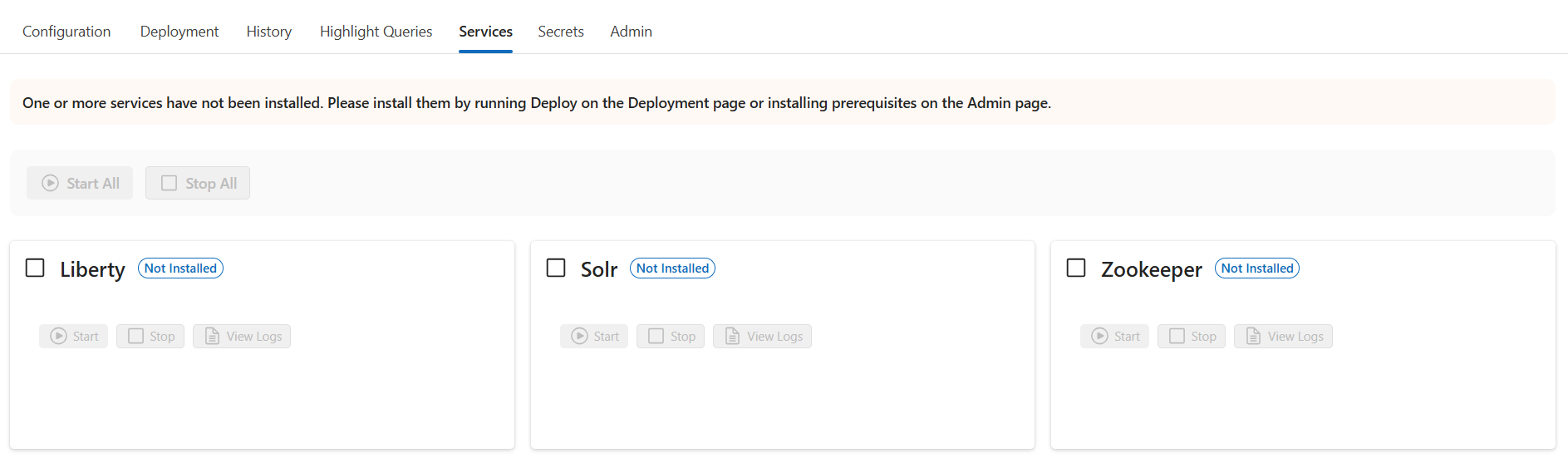
Service cards
The tab displays a card for each of the three services:
Liberty — The application server that hosts the i2 Explore for iBase web application.
Solr — The search engine that provides text search capabilities.
ZooKeeper — The coordination service required by Solr.
Each card shows the following information:
Status — The current state of the service, displayed as a coloured badge:
Green Live — The service is running and responding.
Stopped — The service is not running.
Blue Initializing — The service is starting up and is not yet ready.
Red Error — The service encountered a problem. A diagnostic message is displayed on the card with details about the issue, such as a port conflict. Where a port conflict is detected, the card also displays the name and process ID of the conflicting process.
Not Installed — The prerequisite binaries for the service have not been installed.
Port — The port number on which the service is listening.
PID — The process identifier of the running service.
Starting and stopping services
Two global buttons are provided at the top of the tab:
Start All — Starts all three services.
Stop All — Stops all three services.
Each service card also has individual Start and Stop buttons, so that you can control services independently.
When you start a service, the Administration Console monitors the service, providing feedback while the service is starting. Each service card displays the current state and any diagnostic information.
Note: All service controls are disabled while a deployment task is in progress, or if the prerequisites have not been installed. If prerequisites are missing, the tab displays a warning message.
Viewing service logs
Each service card includes a View Logs button. Clicking this button opens a dialog that displays the current log file for that service. You can use the log to investigate errors, monitor startup behaviour, or review recent activity.
Status polling
The Services tab automatically refreshes the status of all services at a regular interval. By default, the polling interval is 5 seconds. You can change this interval on the Admin tab.