
Change a marker's location in i2 Overwatch
You can change the location of a marker directly from the map in i2 Overwatch.
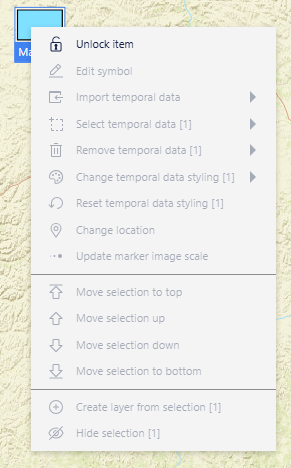
Open Change location to move a marker by dragging it on the map or by entering new coordinates. Use drag on the map for visual repositioning, or enter coordinates when you need a precise location.
Changing a marker's location
Open Change location for the marker that you want to move.
Choose a relocation method:
Drag on the main map, or
Enter replacement coordinates and click Apply.
Moving a marker on the map
Open Change location for the marker you want to move.
Click and drag the marker on the main map to the desired spot.
When you drag a marker:
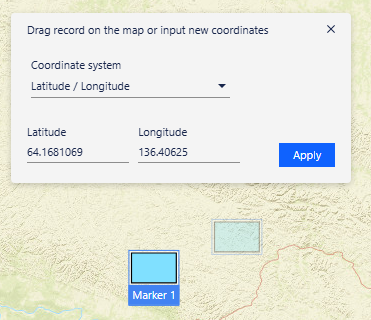
A dialog remains open near the top of the map and shows the instruction Drag record on the map or input new coordinates.
The marker stays in its original location while you drag. A faded marker shows the new location before you drop it.
Map panning is temporarily unavailable while you drag the marker, and is restored afterwards.
The new location is committed immediately when the mouse is released and the dialog closes after the move is saved.
You use the main map to move the marker. There is no preview map in this dialog.
Entering coordinates
Open Change location for the marker.
Enter valid replacement coordinates in the compact inputs and click Apply.
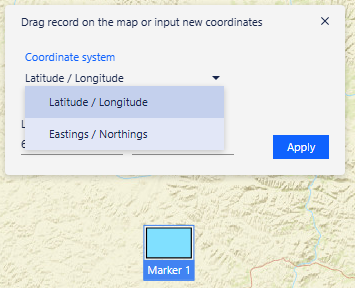
You can enter coordinates in Latitude / Longitude.
Depending on how i2 Overwatch is configured, other coordinate systems might also be available to select, including Eastings / Northings.
If needed, non-WGS84 coordinate inputs are converted to the map's coordinate system before the new location is applied.
When you cannot use Change location
Change location is available only for markers that support location updates.
Read-only or locked markers cannot be moved.
If a marker is in a locked layer, it inherits that locked state and cannot be moved.
MGRS coordinates are not supported in this flow.
Notes
When you release the marker, or select Apply, the new location is saved immediately.
Undo is not available for Change location, so check the new position before you apply the change.
Troubleshooting
If you cannot start dragging, check that the marker supports Change location and is not locked or read-only.
If the map moves instead of the marker, make sure that the Change location dialog is open before you start dragging.
If coordinates do not apply, check that the values are valid for the selected coordinate system.
If the change is not saved, try again and contact your administrator if the problem continues.