
Configuring tracks
You can change the appearance and behavior of tracks and track points on the map.
Show points on hover
By default, track points are only visible when you hover over them. To make track points always visible, open the map settings, go to the General tab, and turn off Show points on hover only.
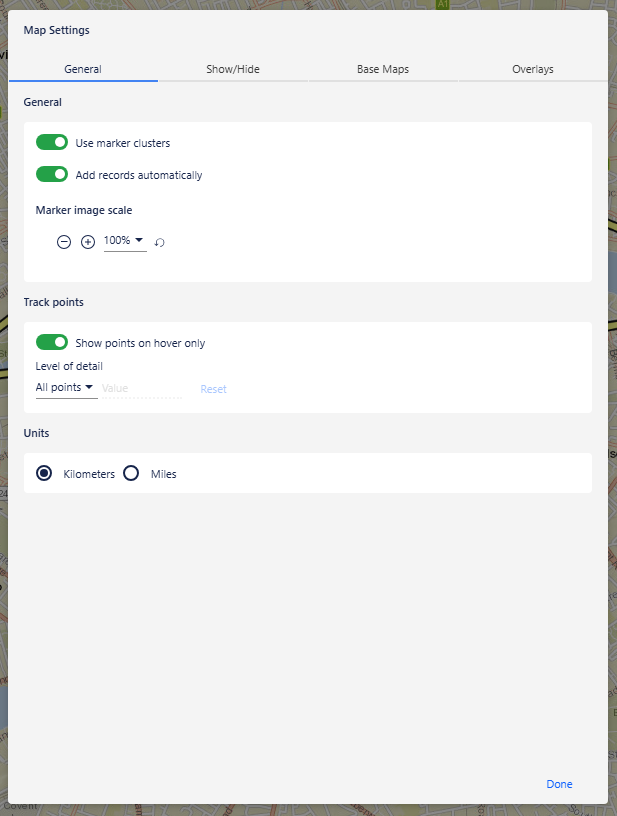
Level of detail
You can control how many track points are displayed on the map. To reduce the number of points shown, open the map settings and choose one of the following options:
Time — enter a time interval value and select a unit: seconds, minutes, or hours.
Distance — enter a distance value and select a unit: metres, kilometers, feet, or miles.
Density — enter a value to specify the number of points to display.
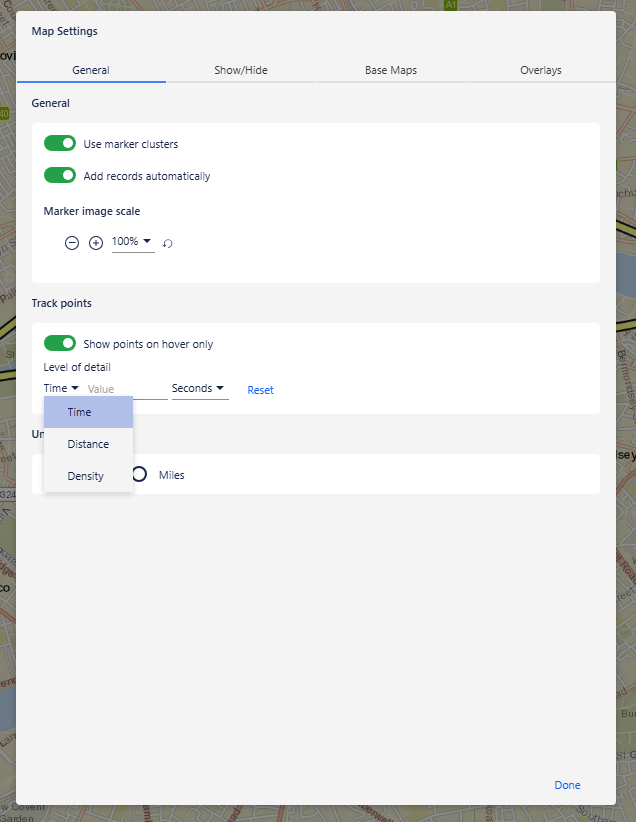
To display all points again, click Reset.
Style of tracks and track points
To change the color of a track or track point, right-click it, select Change selection color, choose a color and opacity, and then click Done.
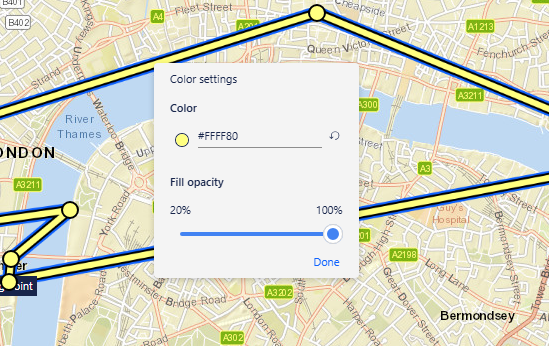
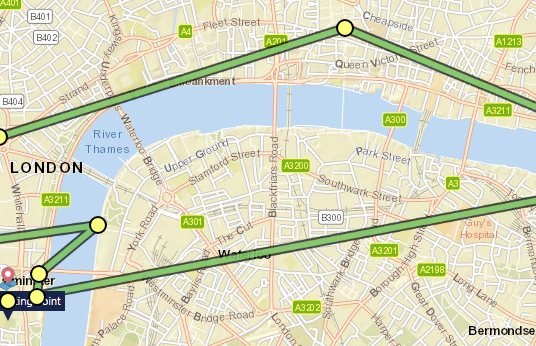
To select multiple tracks or track points, hold Ctrl and click each item.
To remove color and opacity changes, right-click the track, track point, or selection and select Reset selected styling.
Show and hide
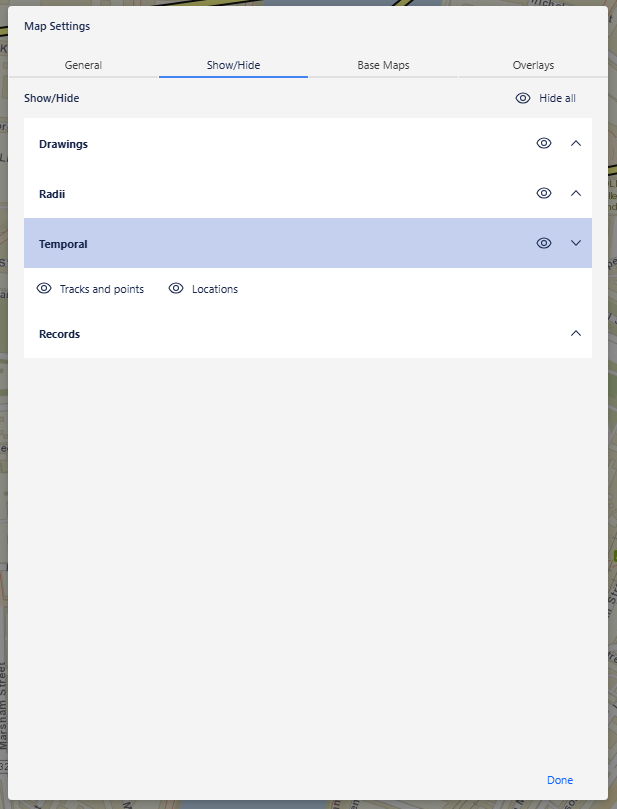
In the map settings, on the Show/Hide tab, under Temporal, you can choose to hide:
Track points and locations — hides all track points and standalone locations.
Locations — hides standalone locations only.
To hide all temporal data at once, use the toggle in the Temporal section header.
Convert to locations
To convert track points to standalone locations, right-click the track and select Convert to locations. The track line is removed and the track points are replaced with standalone locations.
Note: This action cannot be undone. To restore the track, you must re-import the data as track points.
Select track points
To select all track points on a track, right-click the track and select Select track points.
To select the parent marker and bring it into the centre of the map, right-click the track or a track point and select Go to symbol: <Marker Name>, where Marker Name is the label of the marker.