
Drawing tools in i2 Overwatch
Use the drawing tools to add lines and shapes to the Overwatch map.
Click Drawing tools to expand the toolbar.

After you create a drawing, you can change its label by double-clicking the label, or by right-clicking it and selecting Edit label.
Draw a polyline
To draw a polyline:
Click the polyline tool.
Click the map to place the starting point.
Click each additional point that you want to add to the line.
To finish the line, click the last point again, or click Finish.
While you are drawing, you can click Delete last point to remove the most recent point, or Cancel to stop drawing.
The polyline is added to the map with a label and a size.
Draw a polygon
To draw a polygon:
Click the polygon tool.
Click the map to place the starting point.
Click each additional point that you want to add around the shape.
To finish the polygon, click the starting point again to close the shape, or click Finish.
While you are drawing, you can click Delete last point to remove the most recent point, or Cancel to stop drawing.
The polygon is added to the map with a label and a size.
Draw a rectangle
To draw a rectangle:
Click the rectangle tool.
Click and drag on the map to draw the rectangle.
Release the mouse button to complete the shape.
Before you click the map to start drawing, you can click Cancel to exit rectangle drawing mode.
The rectangle is added to the map with a label and a size.
Edit a shape
To edit a shape:
Click Edit a shape.
Click a point on any shape, and then drag it to a new position.
To add a point, drag one of the semi-transparent points that appear between existing points.
To remove a point, click the same point again.
Click Save to keep your changes, or Cancel to restore the shapes to their previous state.
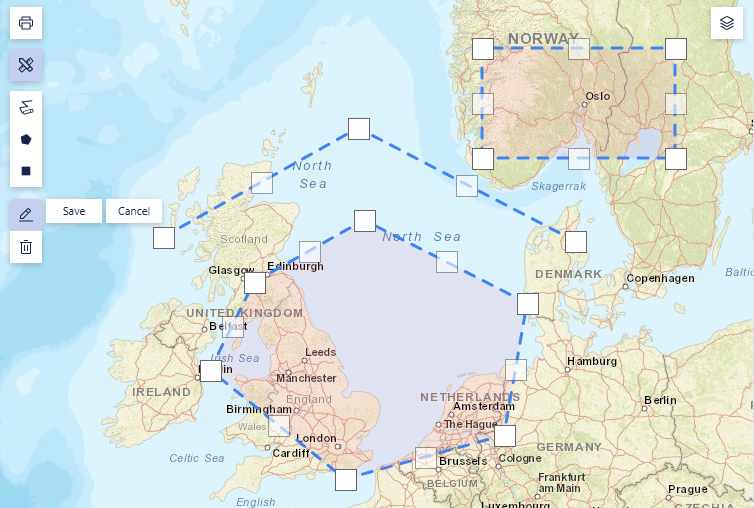
When you enter edit mode, all shapes on the map are placed in edit mode, and all of their points are displayed.
Delete a shape
To delete a shape or line:
Click Delete.
Click any shape that you want to delete.
Click Cancel to restore the shapes that you selected for deletion.
Click Delete all to remove all shapes from the map. This action cannot be undone by clicking Cancel.
Edit a shape's style
To edit a shape's style:
Right-click the shape.
Select one of the following actions:
Edit label
Bring to front
Send to back
Change color
If you select Change color, you can change the shape color and opacity. If the color has already been changed, you can also revert it to the default color.
Map settings for drawings
Use the map settings to change how drawings are measured and displayed.
In the map settings, on the General tab, you can choose whether map measurements are shown in kilometers or miles.
In the map settings, on the Show/Hide tab, you can choose to hide drawings, drawing labels, or drawing sizes.