Getting started
At this point, you should have installed the TextChart Data Access software. This section will guide you through the steps to set up your data connections.
Bring up the admin user interface by opening a browser and navigating to http://<tdas_host>:<admin_port>/RosokaDataAccessAdmin (for example, http://localhost:9081/RosokaDataAccessAdmin).
You may be asked to log into the administrator UI. The default user is "admin" and the default password is "rosoka". You can change these credentials at a later time.
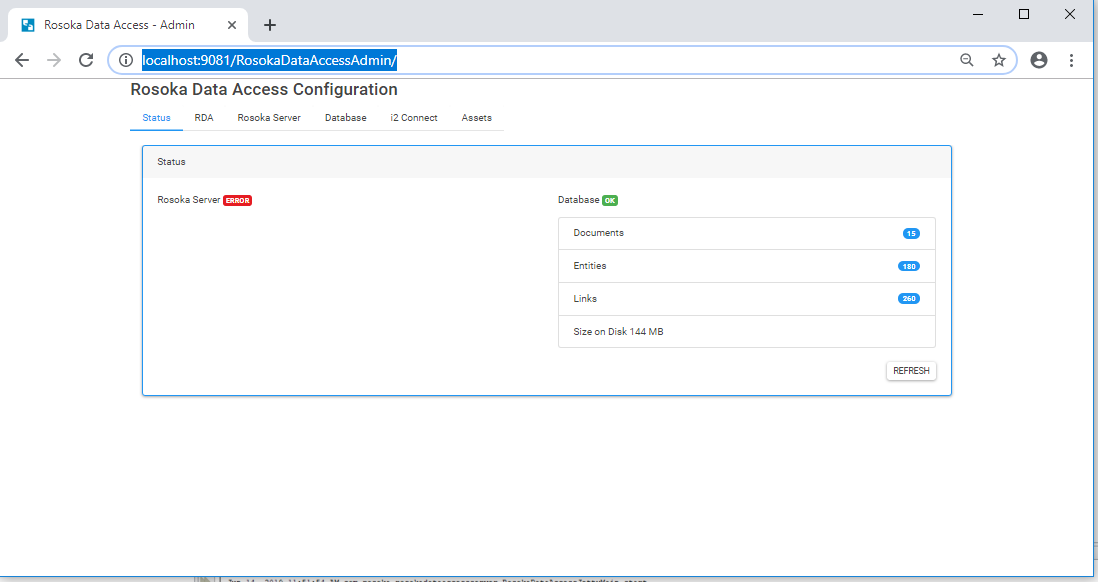
When TDAS is first accessed, indicators inform you whether the connections to TextChart Manager and/or the database are established. When they are connected, these indicators will turn green. The figure below shows the main page indicating that there is no connection to TextChart Manager, while the database connection is green.
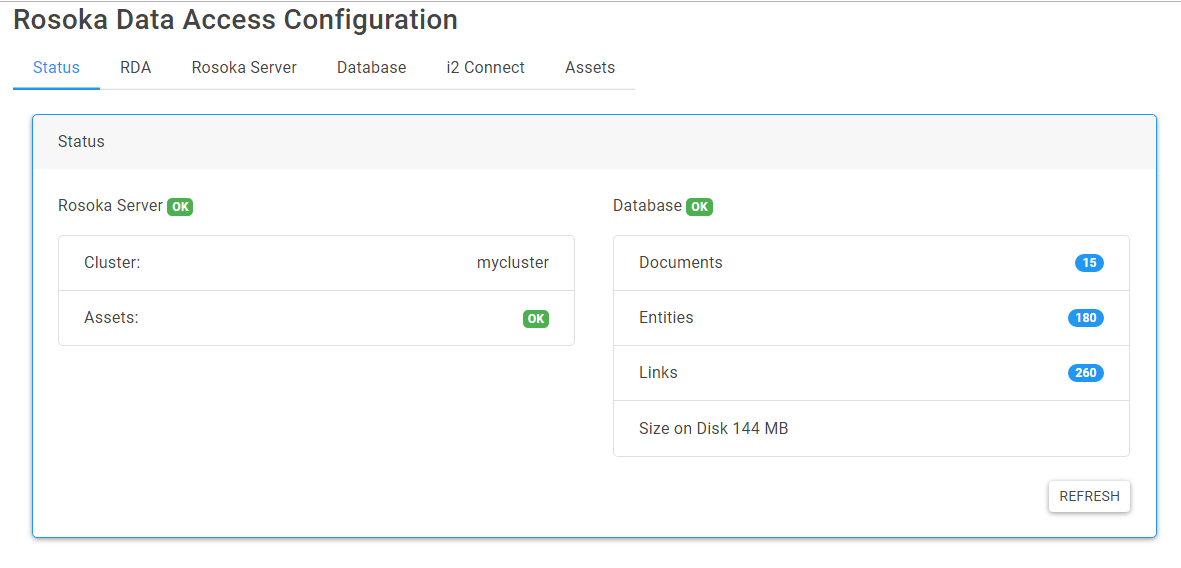
Once all of the connection are configured you will see the green status as shown.
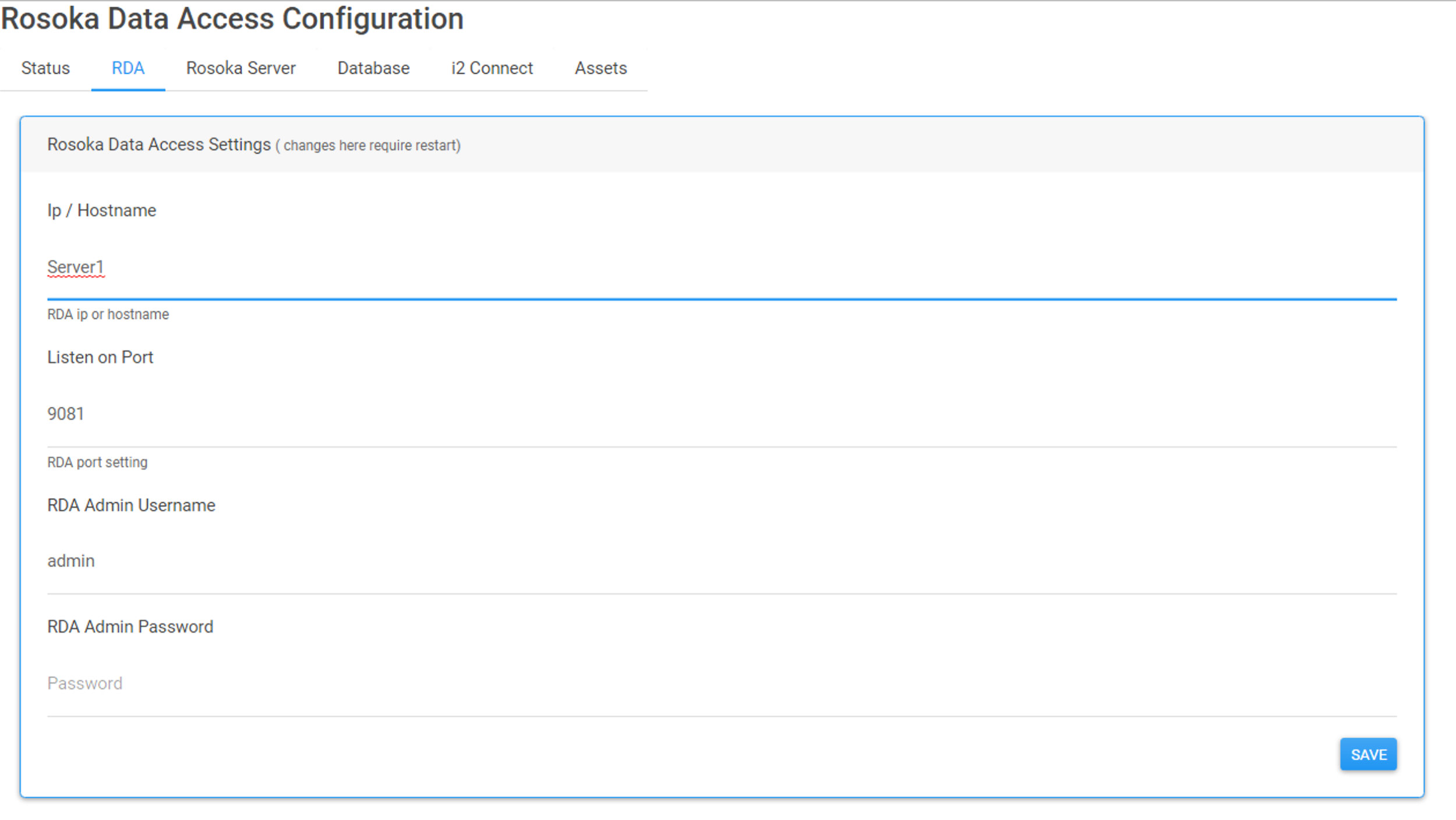
The RDA tab allows the RDAS server name (or IP) to be set the port to use, and the admin password.
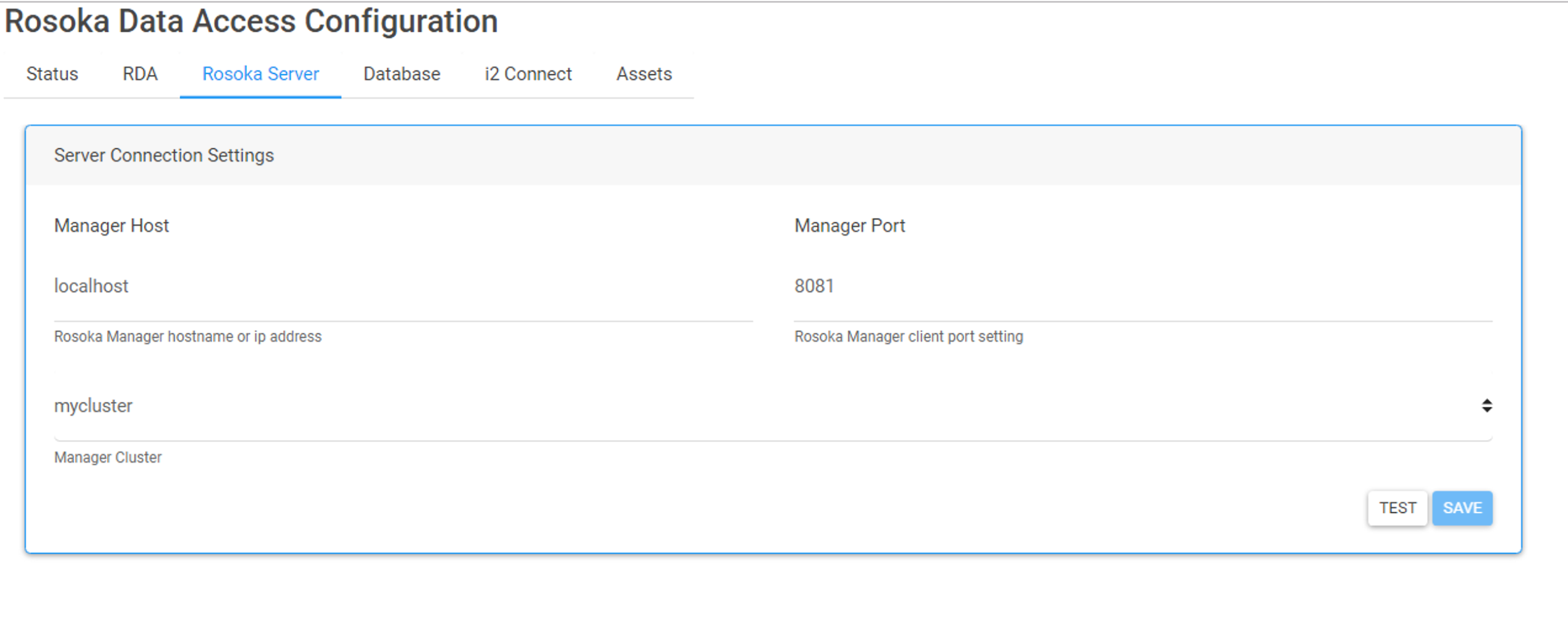
The Rosoka Server tab is used to set the properties to a Rosoka Server (Manager/Worker cluster) and test the connections.
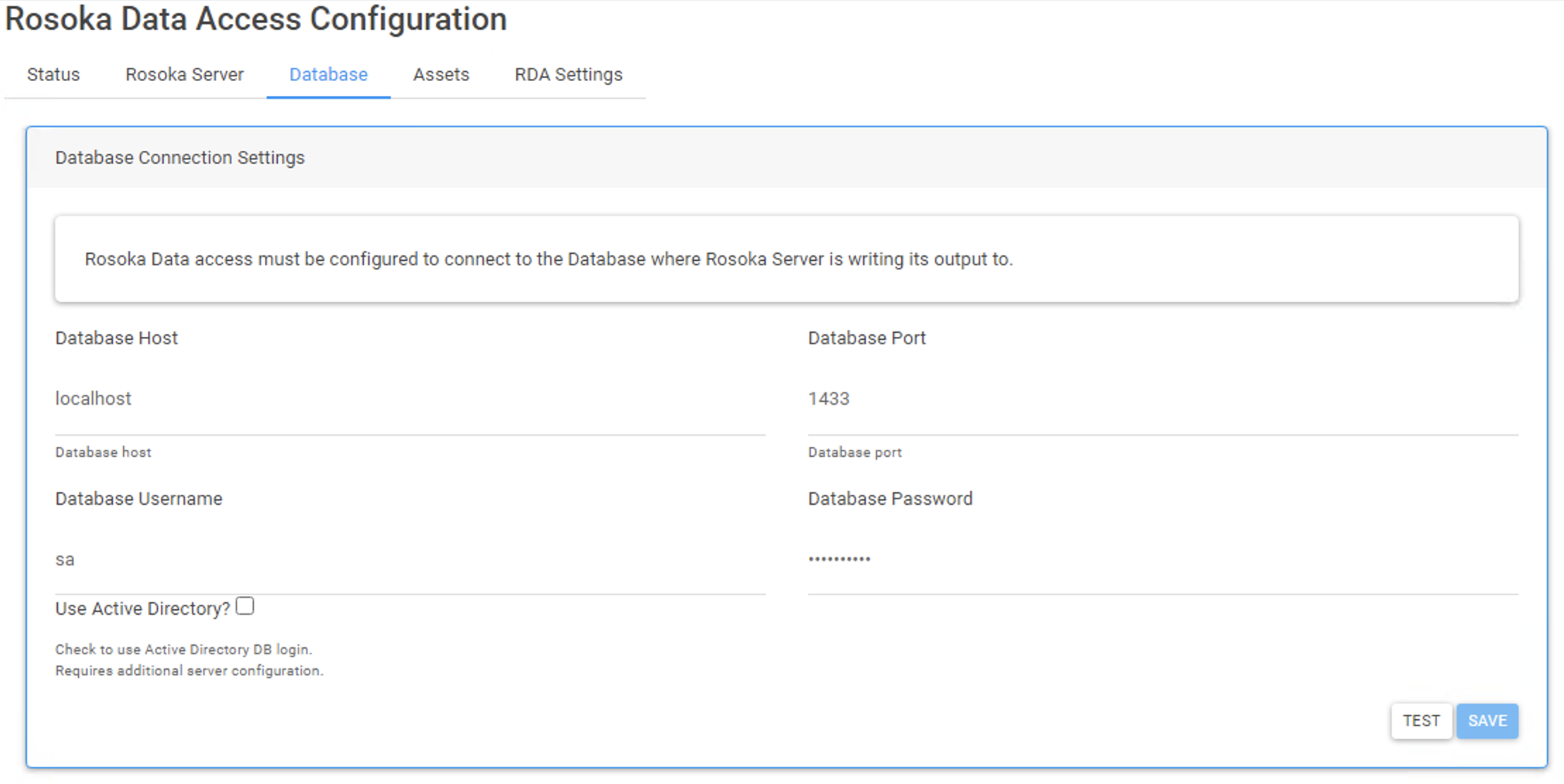
The Database tab is used to set and test the connection the database where processing results are stored.
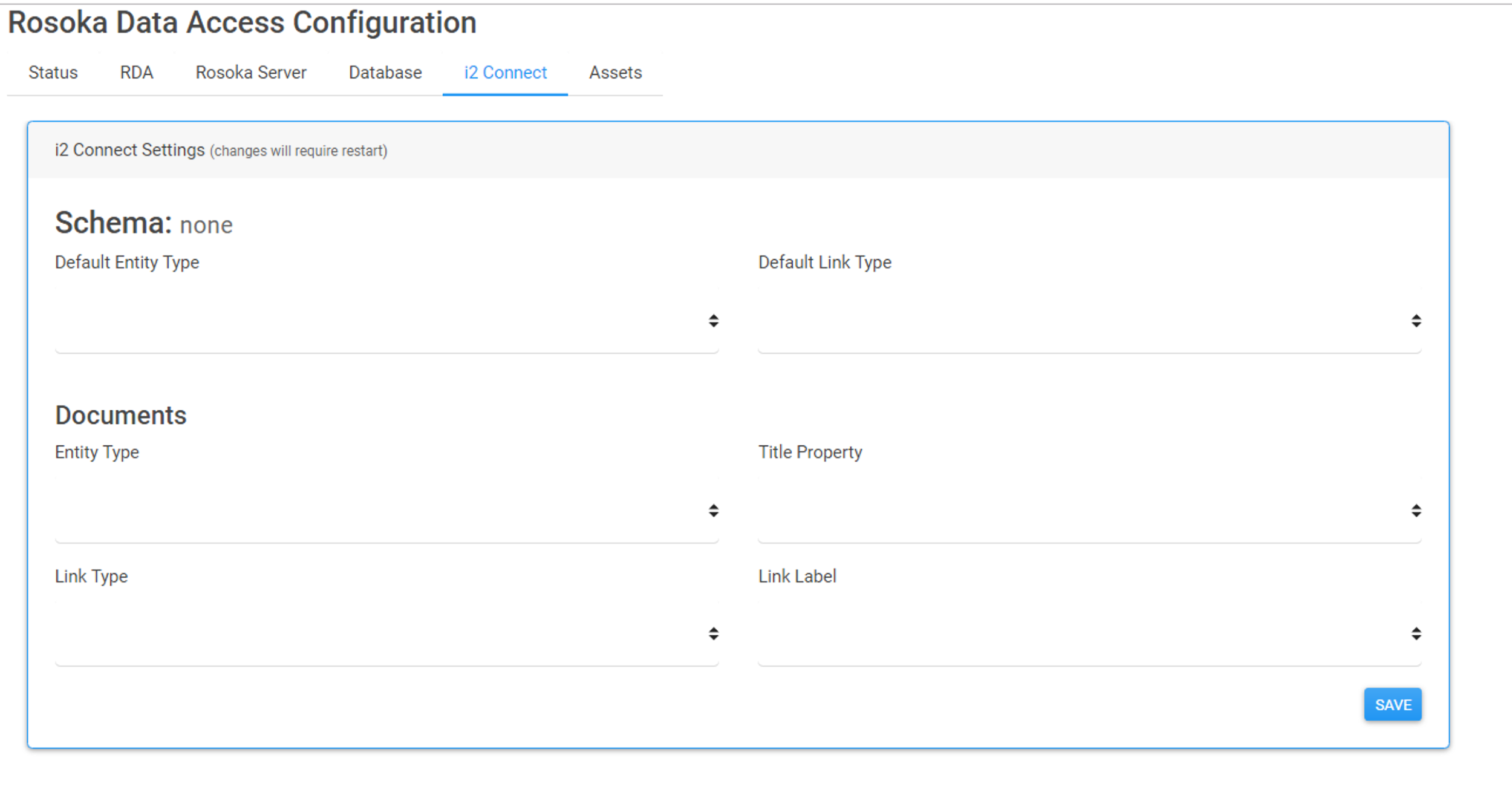
The i2 Connect tab allows you to configure an i2 connector.
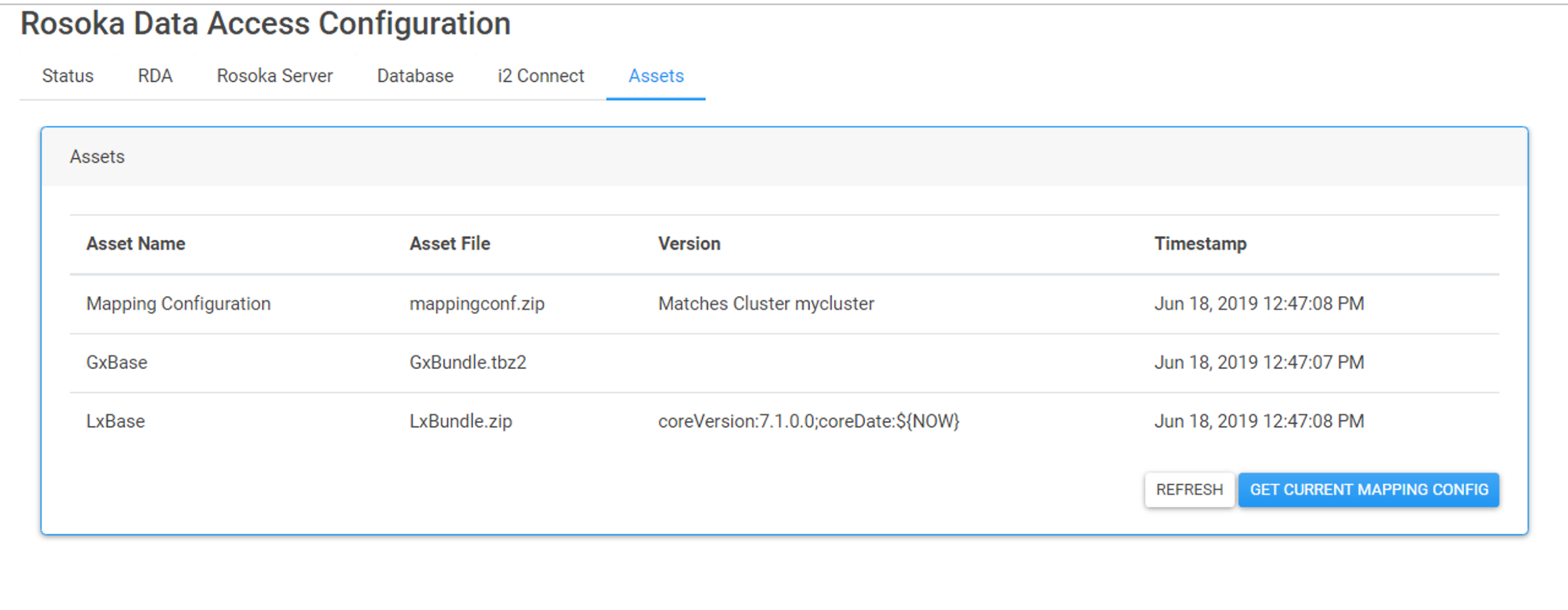
The Assets tab provides information about the assets (GxBase, LxBase, and Mapping Configuration). The asset tab allows you to sync the assets to have the same assets used by Rosoka Server.